MindCuber.com
Build your own LEGO® MINDSTORMS® robot to solve the Rubik's Cube®...
MindCub3r is a robot that can be built from a single LEGO MINDSTORMS EV3 home set (31313) or from EV3 Education Core and Expansion sets (45544+45560) to solve the well known Rubik's Cube puzzle.
All MindCub3r software releases should work with LEGO EV3 firmware versions from v1.06H (home) and v1.06E (Education) onwards. It is recommended that the EV3 firmware is always updated to the latest version released from LEGO.
Construct the robot by carefully following the build instructions (Home) or build instructions (Education) and then download and install the software described below.
MindCub3r software consists of three main parts:
a project file: MindCub3r-v2p2.ev3 or MindCub3r-Ed-v2p2.ev3, containing the motor and sensor control program created using the standard LEGO MINDSTORMS EV3 graphical programming environment
an executable program: mc3solver-v2p2.rtf, compiled from C++ that implements an efficient solving algorithm that can find much shorter solutions than the NXT MindCuber variants
an EV3 application: "MC3 Solver v2p2", that is used to launch the mc3solver-v2p2.rtf program
Note: release v2p2 uses the .rtf extension to enable the files to be downloaded using the standard LEGO MINDSTORMS EV3 software. The .rtf extension is intended to be used for files containing text so using if for the executable program is a work-around. Please do not try to open this file with a text editor.
MindCub3r uses the EV3 color sensor in RGB mode to enable it to measure colors that cannot be distingished by the standard color mode provided by the standard LEGO MINDSTORMS EV3 software. The Color Sensor RGB Block must be imported into the LEGO MINDSTORMS EV3 software to support this mode.
NOTE: LEGO MINDSTORMS EV3 software for Mac OS from version 1.4.0 no longer supports importing blocks such as the ColorSensorRGB block. In this case there is an alternative method to download the MindCub3r software to the EV3 using a micro-SD card.Extract the file from this archive.
On a computer running Windows, find the file in Windows Explorer, click with the right mouse button and select Extract all...
This archive contains:
Start the LEGO MINDSTORMS EV3 software and create a new, empty project.
Select the Tools menu and then Block Import.

In the Block Import and Export dialog, select Browse.

Find the file ColorSensorRGB-v1.00.ev3b on your computer and Open it.

Select ColorSensorRGB-v1.00.ev3b from Select Blocks to Import and then select Import.

To complete the installation, close the dialogs and exit from LEGO MINDSTORMS EV3 software.
Download the appropriate file to your computer:
Note: previous versions are still available here
Extract all the files from this archive.
On a computer running Windows, find the file in Windows Explorer, click with the right mouse button and select Extract all...
This archive contains:
Start the LEGO MINDSTORMS EV3 software and select the File menu then Open Project.

Find the MindCub3r-v2p2.ev3 or MindCub3r-Ed-v2p2.ev3 project file and Open it.

Download the MindCub3r program to the EV3 (but do not run it yet).

Select the Tools menu and then Memory Browser.

Select Brick (or SD Card if there is a micro-SD card in the EV3) and find and select MindCub3r-v2p2 or MindCub3r-Ed-v2p2 in the Projects folder and then select Download.


Find the folder on the computer where the files were extracted from MindCub3r-v2p2.zip or MindCub3r-Ed-v2p2.zip. Select mc3solver-v2p2.rtf and Open to download this program to the EV3.

Select Download again from the Memory Browser dialog.
Find the folder on the computer where the files were extracted from MindCub3r-v2p2.zip or MindCub3r-Ed-v2p2.zip. Select InstallMC3-v2p2.rbf and Open to download this file to the EV3.

Close the Memory Browser dialog.
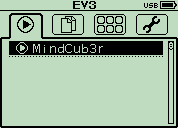
Go to the Run Recent screen on the EV3.

Press the right button on the EV3 to move to the File Navigation screen. Select the MindCub3r-v2p2 or MindCub3r-Ed-v2p2 folder and press the center button to open it. If there is a micro-SD card in the EV3, select and open the SD_Card folder first.


Use the down button to Select InstallMC3-v2p2 and press the center button to run it. The EV3 will make a short beep.

This installs "MC3 Solver v2p2" application on the Brick Apps screen.

Turn off the EV3 brick to ensure all the files are saved to the flash memory and then turn it on again.
MindCub3r is now ready to use!
Run the "MC3 Solver v2p2" application on the EV3 from the Brick Apps screen to start the mc3solver-v2p2.rtf executable program.
This is only necessary once each time the EV3 is turned on as the program will continue to run in the background until the EV3 is turned off.
Run the MindCub3r program on the EV3 from the Run Recent screen or from the File Navigation screen if it is the first time it has been run.

The program first resets the position of the scan arm (holding the color sensor) and then the tilt arm. If the turntable starts to rotate or the two arms do not move in this order, please carefully check that cables have been connected to the correct ports on the EV3 as shown by the color coding in the build instructions. During this period, the EV3 buttons flashes red.
The program then connects to the mc3solver-v2p2.rtf program that was downloaded to the EV3. If the program is found, the EV3 makes a short beep and continues. If the solver program is not running, the buttons continues to flash red and the message "Find solver" is displayed on the EV3 screen. If this happens, please check that the "mc3solver-v2p2.rtf" program has been downloaded to the MindCub3r-v2p2 or MindCub3r-Ed-v2p2 project folder on the EV3 and that the "MC3 Solver v2p2" application has been installed and run once.
When MindCub3r is ready to start, the EV3 buttons turn orange and the message "Insert cube..." is displayed on the screen.
Gently turn the turntable in each direction with your finger so that it moves slightly because of "play" in the gears connecting it to the motor. If necessary, adjust the position of the motor so that there is an equal mount of play in each direction. Use the left and right buttons on the EV3 to do this. A short press nudges the motor by a small angle. Holding the button for longer moves it by larger angles more quickly.
Insert a scrambled Rubik's Cube into the turntable tray and MindCub3r will start to scan and solve the cube.
MindCub3r may scan the cube up to three times if it is unable to determine the colors at first. If the scanned colors do not result in a valid pattern, MindCub3r will stop after the third attempt and display the message "Scan error" on the EV3 display. If this happens, there may be a number of possible causes. See the troubleshooting section.
MindCub3r can solve the cube directly into patterns or scramble it. Before inserting the cube, use the up and down buttons on the EV3 to select a specific pattern, "All" to create each pattern in turn or "Random" to cause MindCub3r to solve normally and occasionally generate a random pattern. Selecting "Scramble" will make MindCub3r scramble the cube without scanning it.
If there is a cube present before MindCub3r is ready, the buttons will stay red and the message "Remove cube..." is displayed for you to remove the cube. If this happens even when no cube is present or if MindCub3r does not start to scan the cube when it is inserted, please check that the cables to the infra red or ultrasonic and color sensors are connected to the correct ports on the EV3 as shown in by the color coding in the build instructions.
Archiving the narratives and "manifests" of live art events.
If you can provide more context on where you found this code (e.g., a specific database, university archive, or exhibition), I can provide a more tailored article.
: The "1 UPD" suffix in our keyword likely indicates a primary sub-component or a status update to an existing record, reflecting the ongoing nature of conservation and research. Digital Curation and Community Engagement Avs-museum-100359 1 UPD
If you provide the specific platform where you encountered this (e.g., a specific archive or security database), I can dig deeper into its origins. SPHERE24 - WithSecure Museum of Malware Art
Most museums use these codes for their Official Website Search. Archiving the narratives and "manifests" of live art events
Could you clarify what you need? For example:
At first glance, the code Avs-museum-100359 1 UPD may appear cryptic. However, when examined through the lens of standard museum numbering conventions, its structure begins to reveal meaningful layers of information. Digital Curation and Community Engagement If you provide
If you provide the article text or a link (where accessible), I’d be happy to help ensure it stays a by suggesting improvements, verifying facts, or polishing the language.
However, the fact that the page reports the museum as non-existent indicates that this entry is either defunct, was never fully created, or has been removed from the active database. This is a common occurrence with web crawlers and search engines indexing pages that are no longer live. The identifier lives on in search results as a ghost of a past data entry.
In the labyrinthine world of museum collections management, every artifact tells a story—and before that story reaches the public eye, it is assigned a silent companion: an identification code. Among the countless alphanumeric strings that populate museum databases worldwide, one particular code——offers a fascinating window into how cultural institutions track, preserve, and manage their treasures. Whether you are a museum professional, a researcher, or simply a curious observer, understanding what this code represents illuminates the hidden infrastructure that protects our shared cultural heritage.
user wants a long article about "Avs-museum-100359 1 UPD". This appears to be a specific identifier that could be from various sources: a museum inventory number, an online marketplace listing, an archival document, or a digital collection. To cover all possibilities, I need to search for this string in different contexts. I will perform searches on general search engines as well as on platforms like eBay, Russian marketplaces, and museum databases. initial set of searches returned no results. It seems "Avs-museum-100359 1 UPD" might be an obscure or internal identifier. I will try to open the first result from the eBay search, as it might have been a removed listing. suggests it might have been a product listing. Perhaps it's related to vintage items, militaria, or Soviet-era artifacts. I will try searching with the "UPD" suffix. search results show a few interesting leads. One result is from "watchcharts.com" indicating a removed eBay listing, and another is a generic "avs-museum" search result that seems to be about a movie or something similar, but that might be unrelated. The identifier might be from an online marketplace listing, possibly for a vintage or collectible item. To gather more information, I should open the watchcharts.com result, as well as the "avs-museum 完结" and "avs-museum 100321" results to see if they are relevant. results show that "avs-museum" might be associated with movies or other content, but these appear to be low-quality or spammy sites. The eBay listing seems to have been removed. I will search for the eBay item ID. have found several leads. The results suggest that the identifier might be linked to a removed eBay listing (possibly for a watch or a collectible), a Russian occupational code (OKPDTR), or a German museum database. To gather more information, I will open the relevant pages from the search results: the watchcharts.com listing, the classinform.ru page, and the kunst-und-kultur.de page. search results have provided a few potential interpretations. The identifier could be related to a removed eBay listing (possibly for a collectible), a Russian occupational classification code, or a German museum database entry. However, none of these seem to fit exactly. The "UPD" suffix might indicate an updated listing or a specific version. Perhaps it's a stock-keeping unit (SKU) from an online marketplace. The user might want an article that explores these possibilities. I will structure the article to discuss the likely interpretations. The article will start with an introduction, then delve into the eBay connection, the OKPDTR interpretation, the German museum database angle, the "UPD" suffix, and other possibilities. It will also discuss how to research such codes and conclude with a summary. I will cite the relevant sources. Decoding "Avs-museum-100359 1 UPD": A Deep Dive into an Enigmatic Digital Artifact
See more LEGO robot Rubik's Cube solvers at youtube.com/IAssemble
Copyright © 2013-2020 David Gilday
LEGO and MINDSTORMS are trademarks of the LEGO Group
Rubik's Cube is a trademark of Rubiks Brand Limited

